iOS 27 AI Photo Editing and Why Originals Matter
Spatial Reframing, Extend and an updated Clean Up tool can change what appears in a photograph. Here is how to keep the camera original and the finished edit in a private archive.
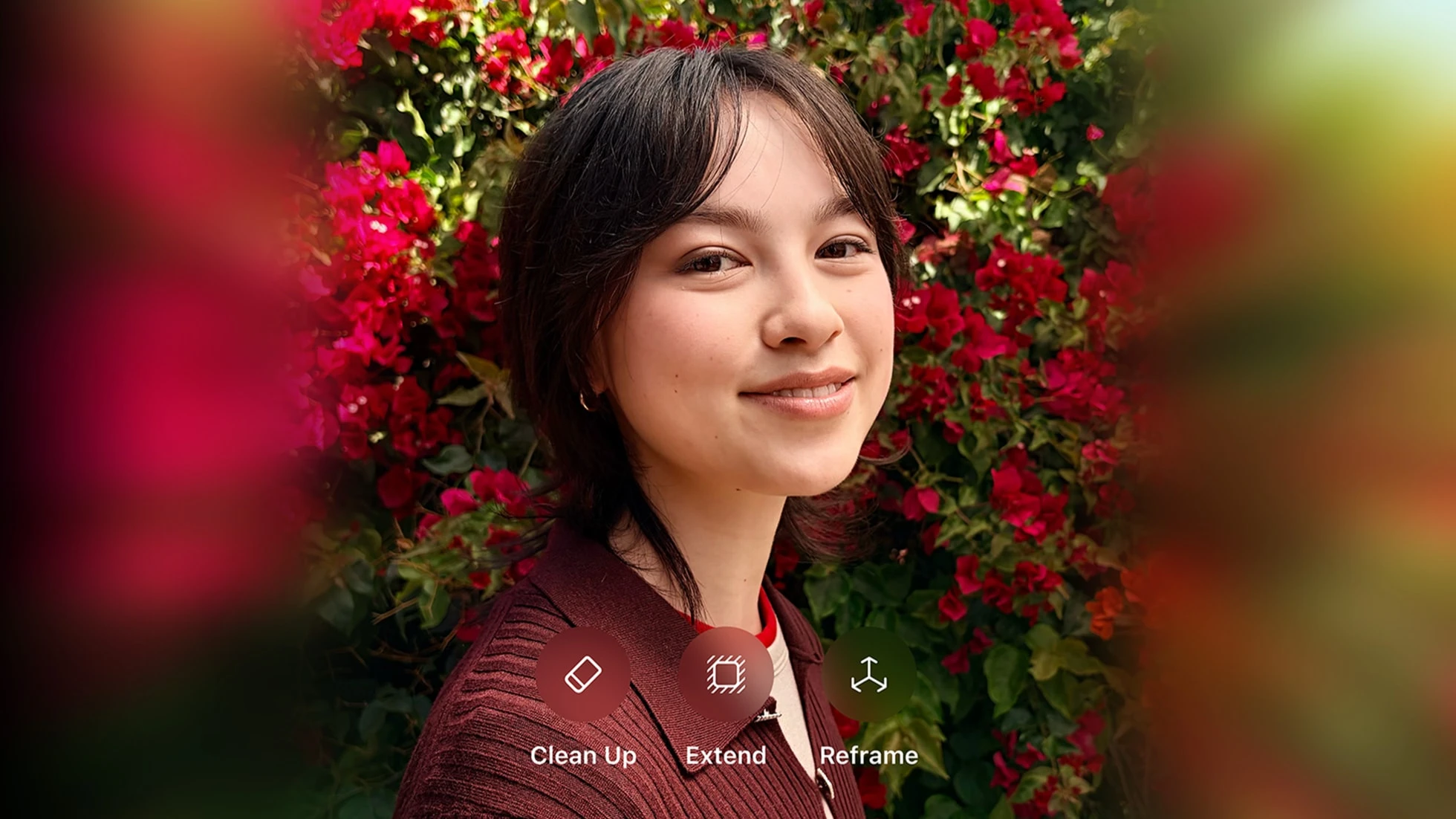 The Clean Up, Extend and Reframe tools in Photos. Source: Apple Newsroom.
Apple's September 14 release brings new AI photo editing tools to Photos. They can change a picture's perspective, extend its edges and remove objects, generating detail to fill the affected areas. Read Apple's announcement.
A wider frame may include a background the camera never recorded. A cleaner scene may leave out something you will care about years later. Keeping the unedited capture gives your future self a choice.
Choose your photo archive deliberately. Use the editor that gives you the result you want, and make Ente the private home for the files you want to keep. Ente encrypts your photos and their metadata before upload, with keys the service cannot access. How Ente protects your photos.
The new AI editing tools in Apple Photos
Tool | What changes in your photo |
|---|---|
Spatial Reframing | Adjusts the apparent viewpoint after capture. Apple says it generates new content where the perspective changes. |
Extend | Fills beyond the existing frame when you change the aspect ratio or straighten a horizon. |
Updated Clean Up | Removes objects and fills the space they occupied. Apple says the update improves this infill in complex scenes. |
Source: Apple's September 14 Apple Intelligence release.
Image Playground also gains photorealistic image generation and new ways to modify images. It is a separate creative app; the three tools above work in Photos. More on the update.
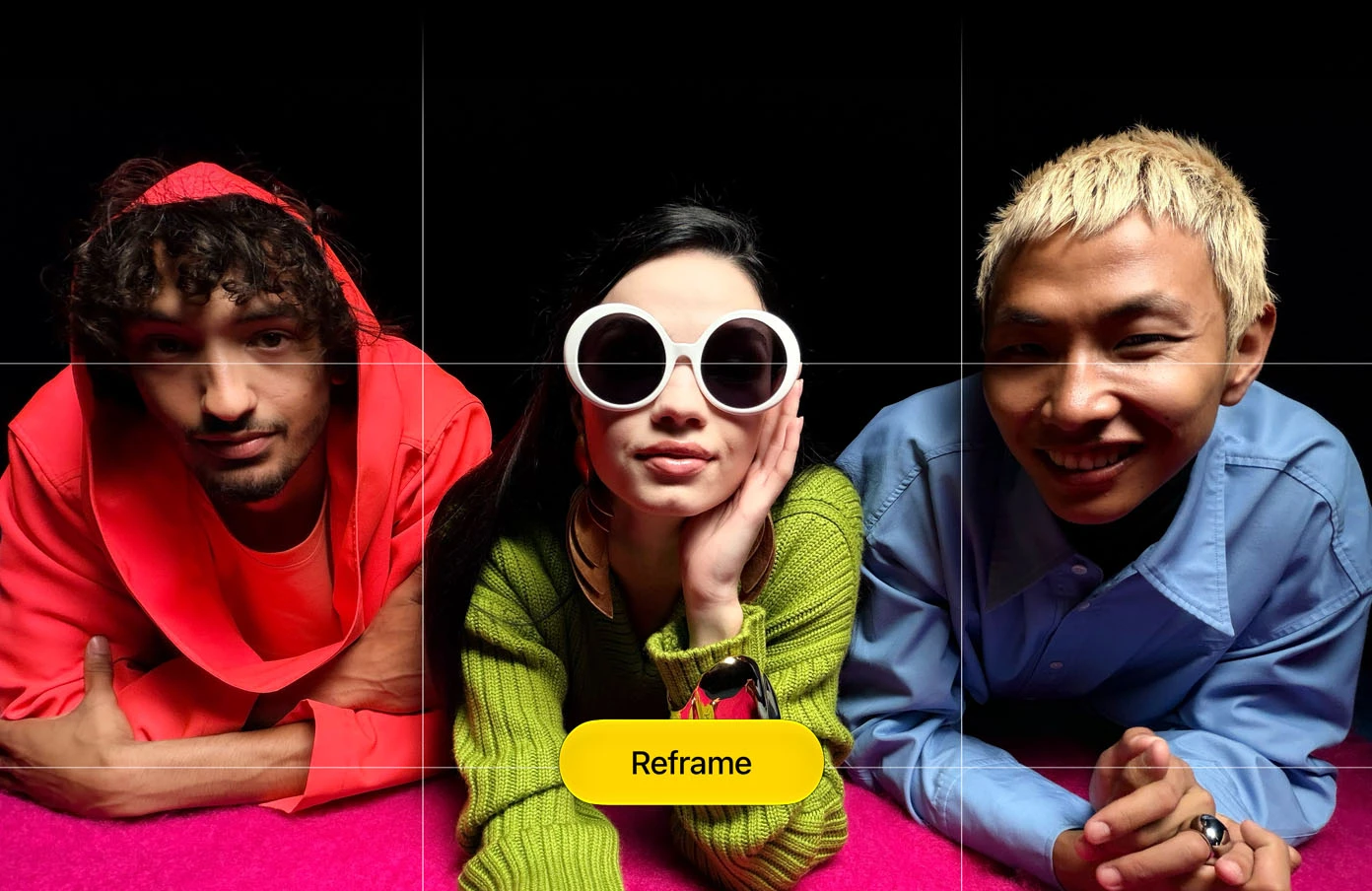 Apple's Spatial Reframing demonstration. Image: Apple. Source: Apple Intelligence.
Generated detail can look plausible without showing what the camera actually saw. Keep both the edited version and the original capture.
Usage limits and future charges for AI editing
Apple says certain features that depend on server models, including intelligent photo editing, have daily usage limits. Those limits can vary with the feature, request complexity and system demand. Apple also plans to charge for expanded access in the future; the announcement gives no price or universal edits-per-day allowance. Apple's availability and usage guide.
Installing iOS 27 alone does not guarantee access. The tools require compatible Apple Intelligence hardware and supported settings; availability varies by language and region. Check your device against Apple's requirements before planning a large editing session.
Where the AI processing happens
Apple combines processing on your device with larger models through Private Cloud Compute. Apple says data processed there is used only for your request, is not stored and is not accessible to Apple. You can choose where your photo library lives independently. Apple's privacy explanation.
For finding and organizing photos, Ente runs face recognition and semantic search on your device. The resulting indexes sync with end-to-end encryption. These features help you find your photos while keeping their contents private. They serve a different purpose from generating a new background or viewpoint. How Ente's on-device ML works.
An AI label cannot replace the original
Apple says SynthID support will arrive in a later update in 2026 and cover most edited images, depending on the edits applied. Its launch announcement also points to image metadata for identifying AI-generated or edited content. Apple's announcement and footnote.
A label can tell you that a picture was altered. It cannot give you the camera's original capture back. For family memories, keep an identifiable original alongside the finished edit, even if the change seems minor today.
Ente returns the same photo and video files you imported when you export them. Changes to dates or descriptions made inside Ente are kept separately. You can preserve both versions of a photograph and take them with you later. Ente's file-preservation behavior.
How to keep originals and AI edits in Ente
Apple Photos retains originals so you can undo edits within its library. To keep your files accessible outside that editing environment, export the versions you want to preserve. Apple's editing guide.
1. Export the original. On a Mac, select the picture in Photos and use File > Export > Export Unmodified Original. This gives you the source file rather than the finished edit. Apple's export instructions.
2. Export the version you edited. Use the regular File > Export > Export Photos command separately, choosing the format, size and quality you need. Keep it in a distinct folder or give it a clear name. A finished JPEG is not an editable history of every change.
3. Import both files into Ente. Upload the original and the finished edit through Ente's desktop or web app. Open both after upload and check that you have the two versions you intended to keep. This workflow saves separate files; it does not transfer Apple's editing controls. Importing from Apple Photos.
4. Leave a note for your future self. Add a description such as "Original camera capture" or "AI edit: extended background." Descriptions in Ente are searchable and end-to-end encrypted. Choose an album name that connects the versions to the same event. Adding descriptions in Ente.
Keep control of your photos as editing tools change. With Ente, you can preserve your originals and edits, and find your memories without giving the storage provider access to their contents. Start your private photo archive with Ente.
For the broader feature breakdown, see our Ente vs. Apple Photos comparison.